

Notification Center
The Notification Center helps you stay informed about changes to your positions and account activity. You can choose your preferred notification channels and the types of alerts you want to receive. More features will be added soon.
Overview
This guide is divided into four parts:
- Signing in to Notification Center
- Managing your account
- Adding wallets
- Managing wallet notification settings
Sign In
- Open the More menu in the Spark App and select Notifications.
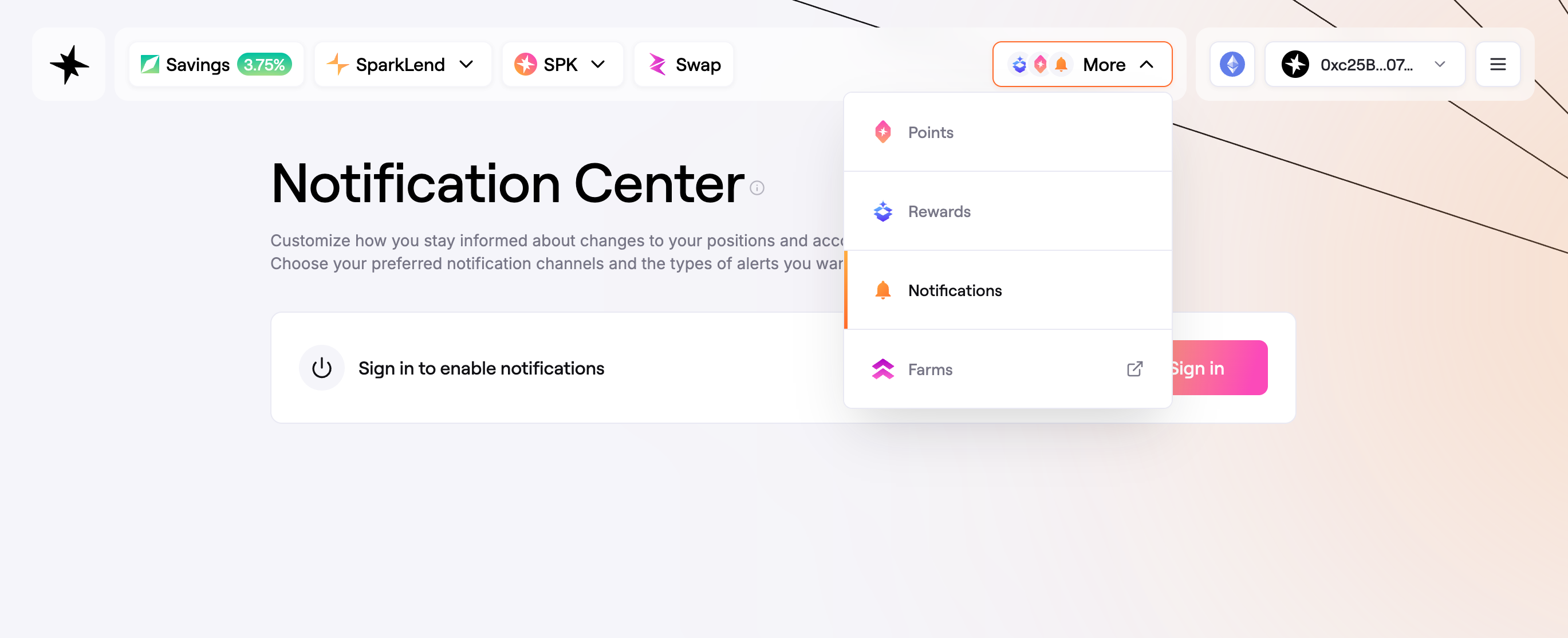 Open Notification Center from the More menu
- The welcome modal is shown the first time you open Notification Center. Click Enable notifications to begin signing in. If you close this modal, it will not be shown again, and you can continue later by clicking Sign in on the main Notification Center page.
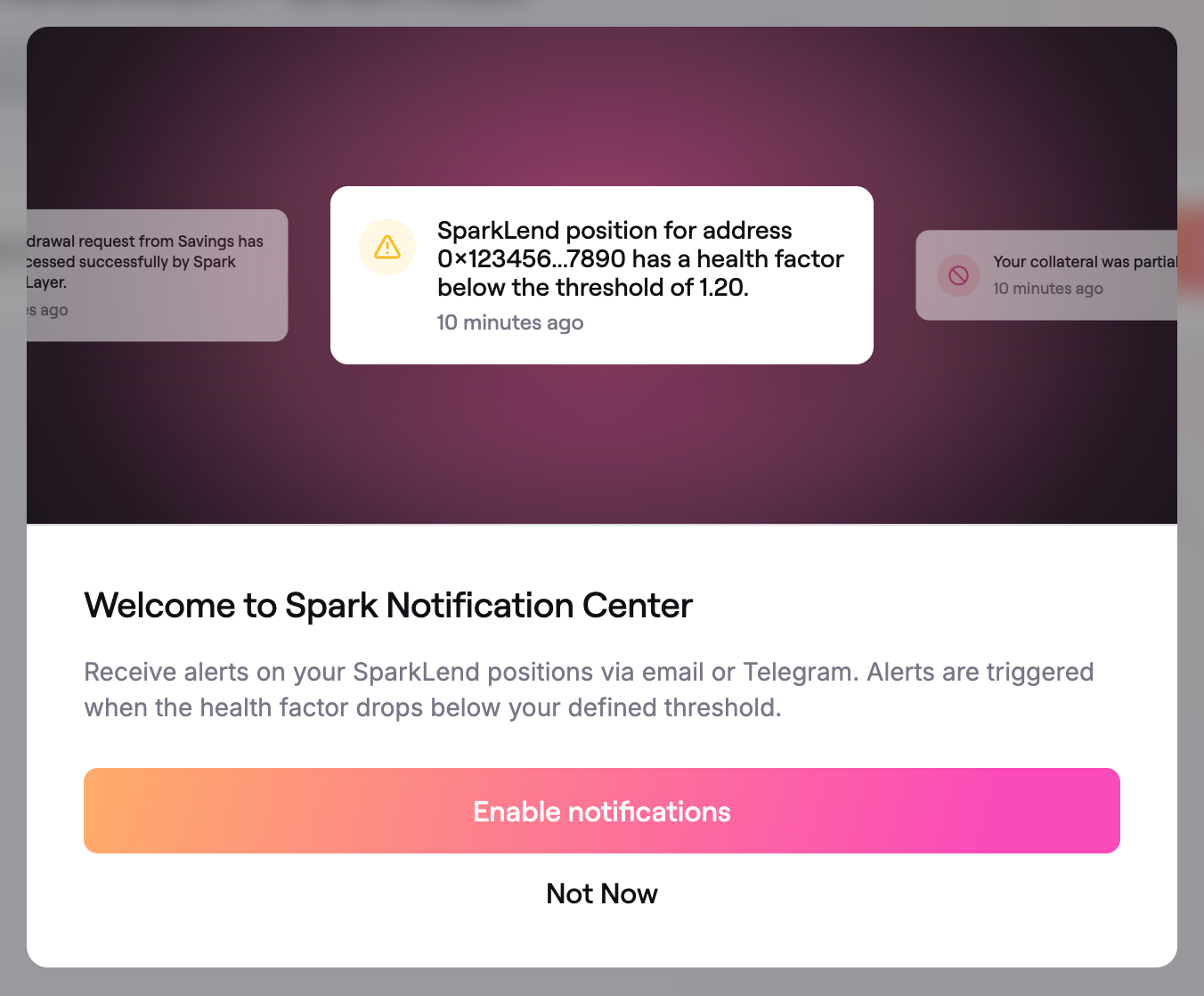 Welcome modal for Notification Center
- Enter your email address and click Continue.
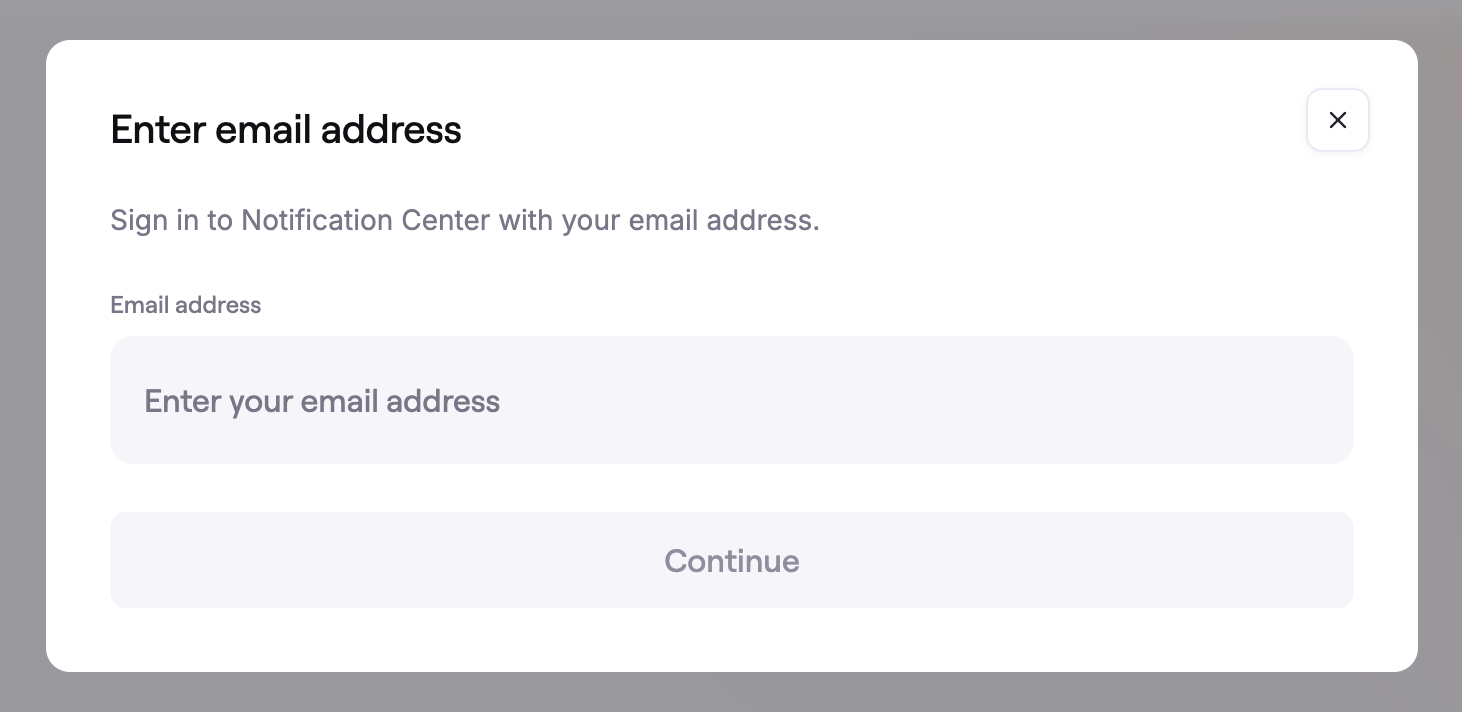 Enter the email address you want to use for notifications
-
Spark will send a one-time verification code to your email address. Open the email, copy the code, and enter it in the OTP screen.
The sender will use the
notifications.spark.fidomain.
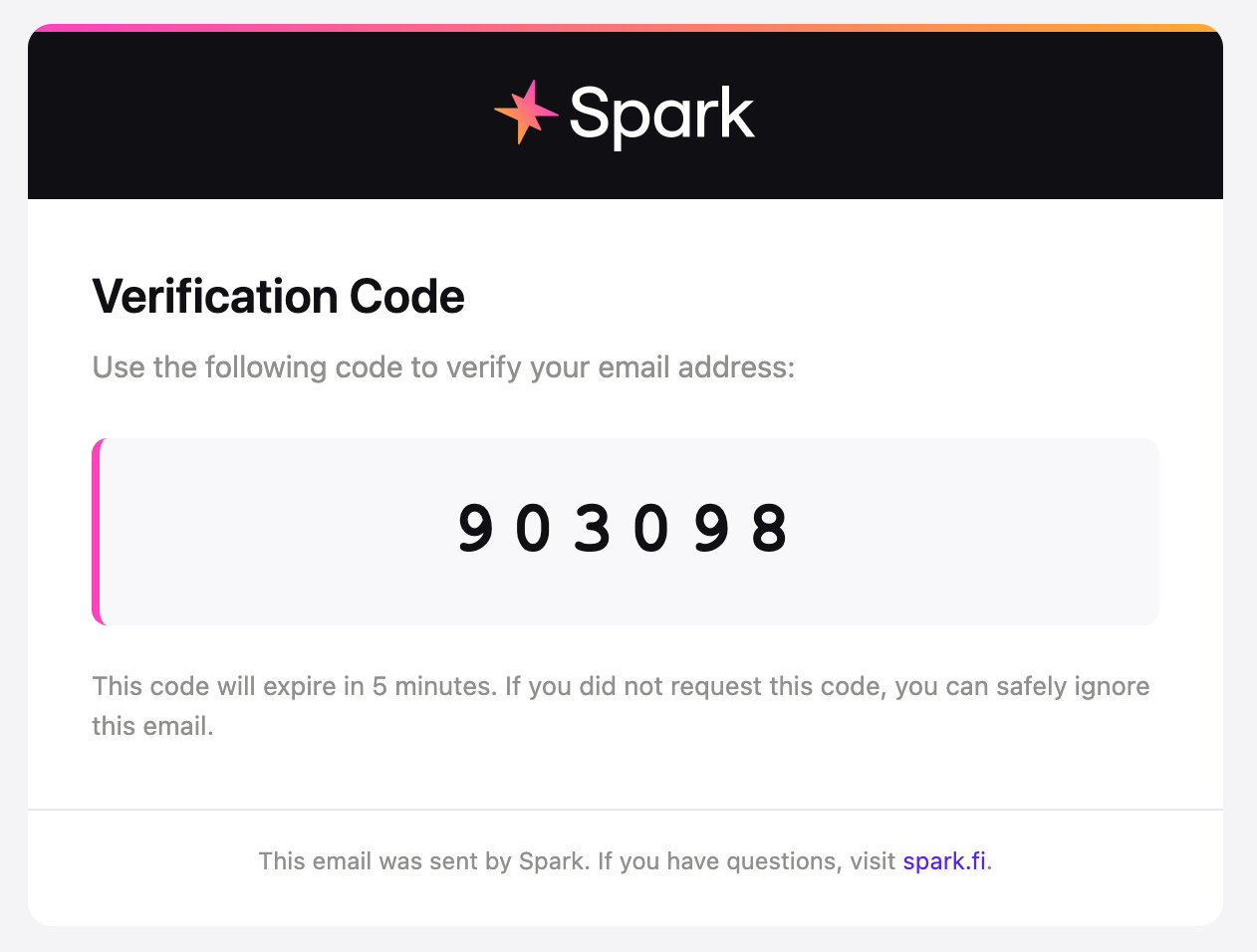 Example verification email
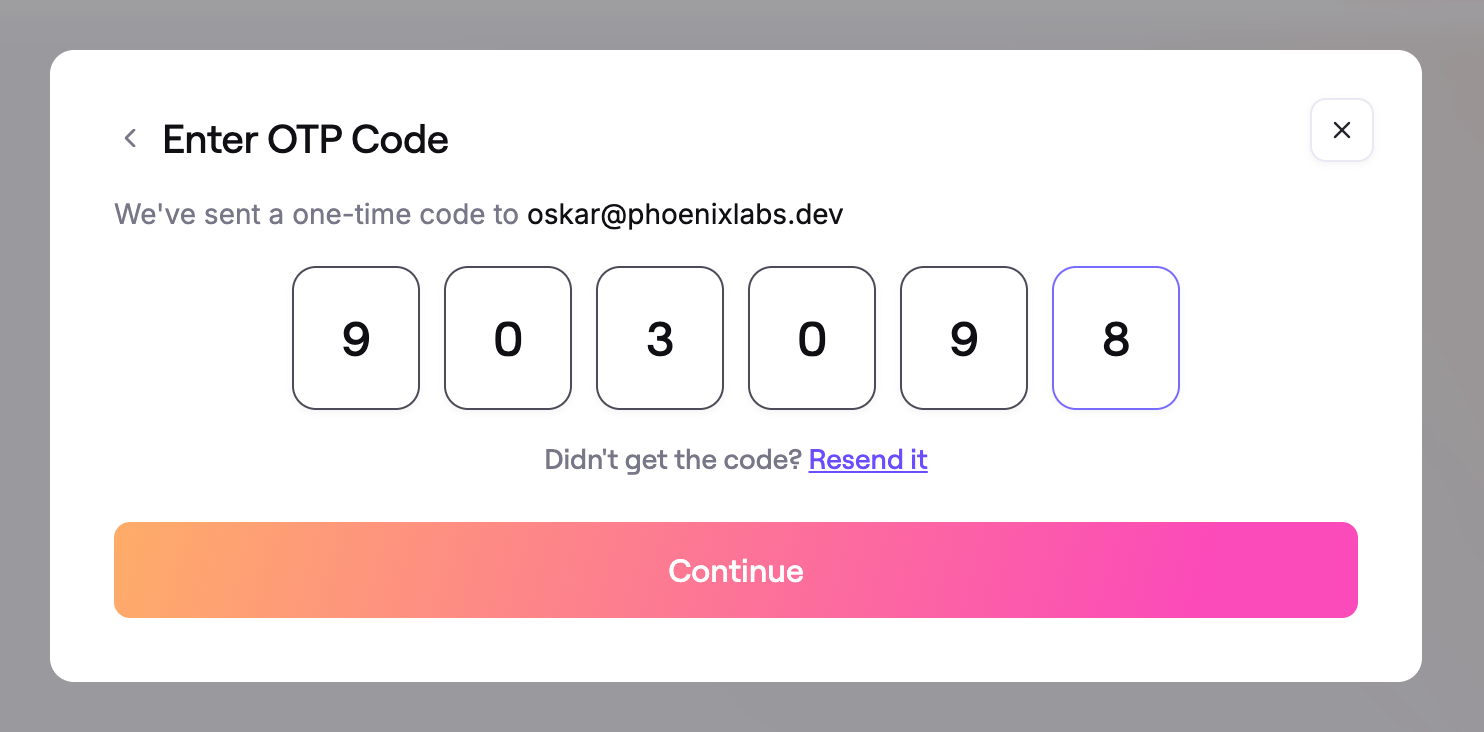 Enter the one-time code to finish signing in
-
After signing in, you will see the main Notification Center view with:
- Account: Your signed-in email address.
- Telegram: An optional channel for receiving alerts in chat.
- Wallets: The wallets you want to monitor.
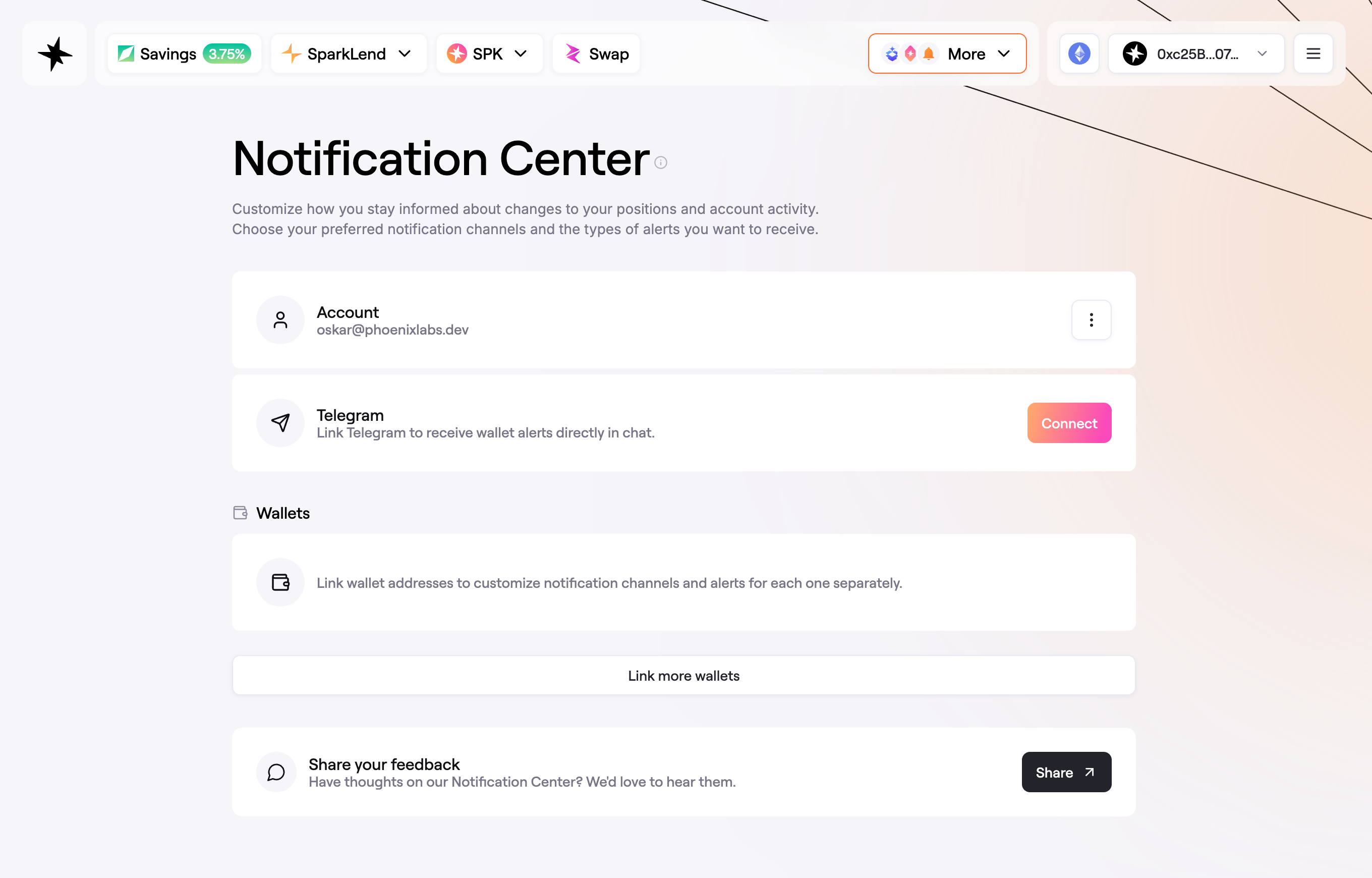 Notification Center after signing in
Manage Your Account
- To receive alerts in Telegram, click Connect in the Telegram panel and follow the Telegram prompt to complete the connection. This step is optional.
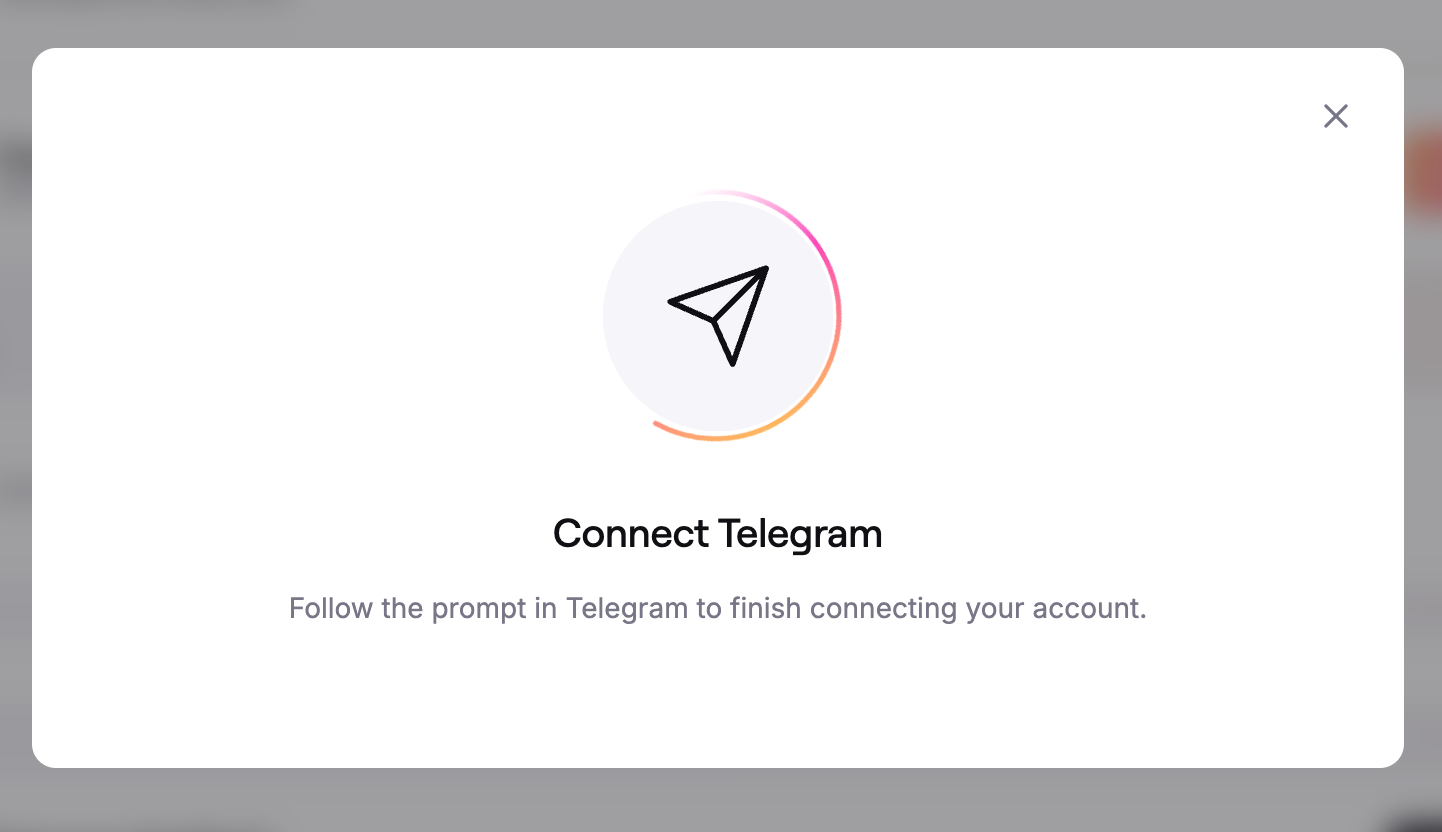 Connect Telegram to receive alerts in chat
- To disconnect Telegram, click Disconnect in the Telegram panel and confirm.
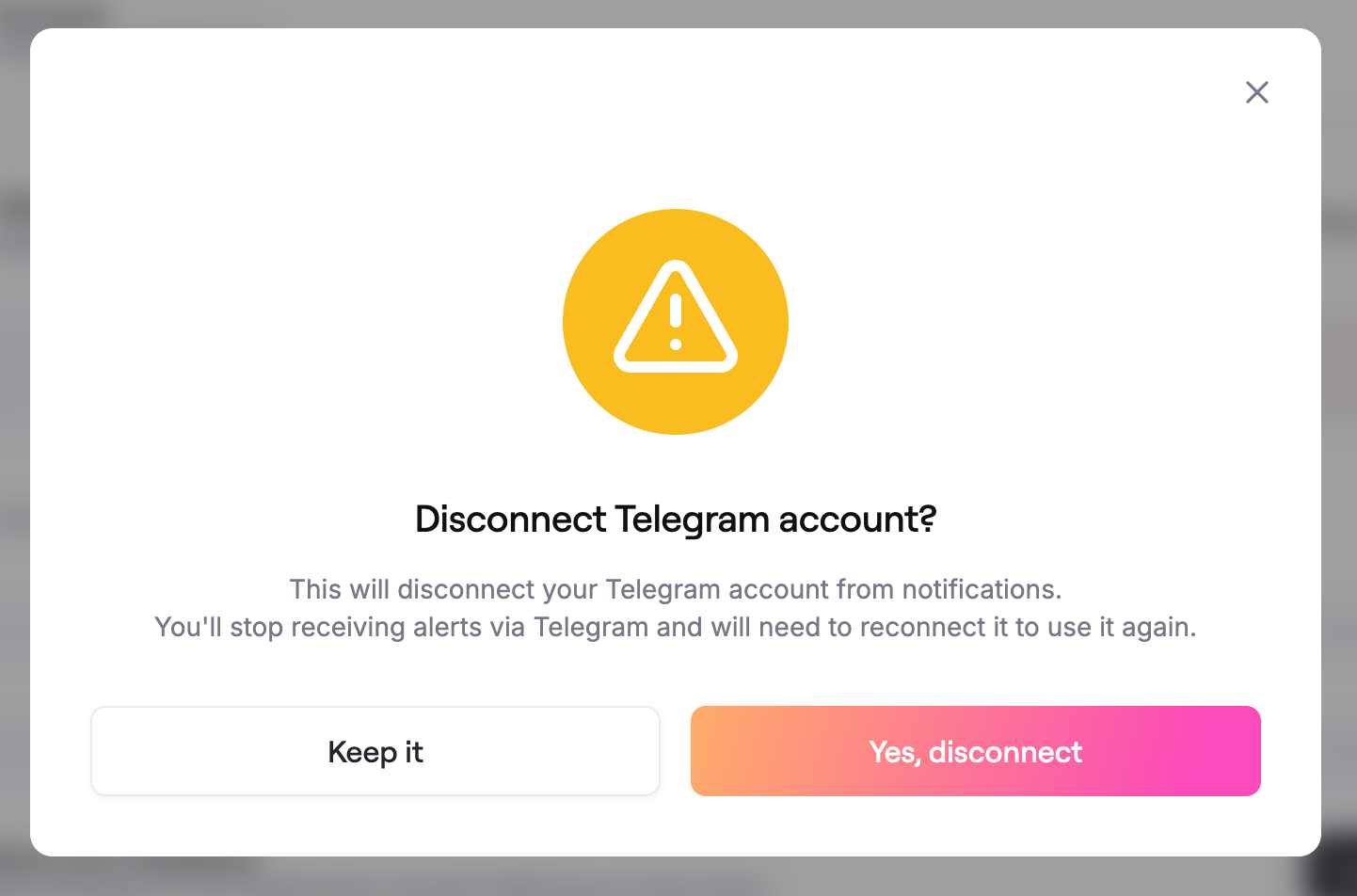 Disconnect Telegram if you no longer want Telegram alerts
- To sign out, open the three-dot menu in the Account panel and click Sign out.
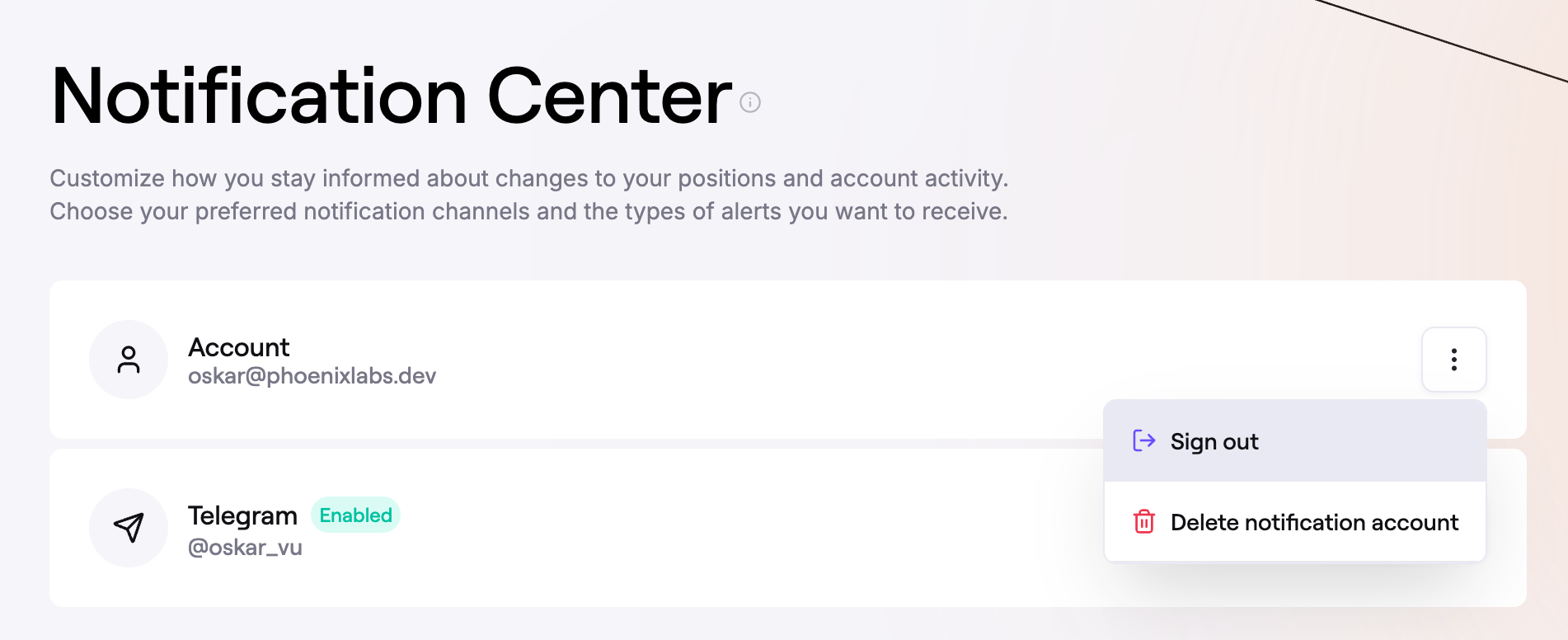 Use the Account menu to sign out or manage the notification account
- To permanently remove your Notification Center account and saved settings, open the same menu and choose Delete notification account, then confirm the deletion.
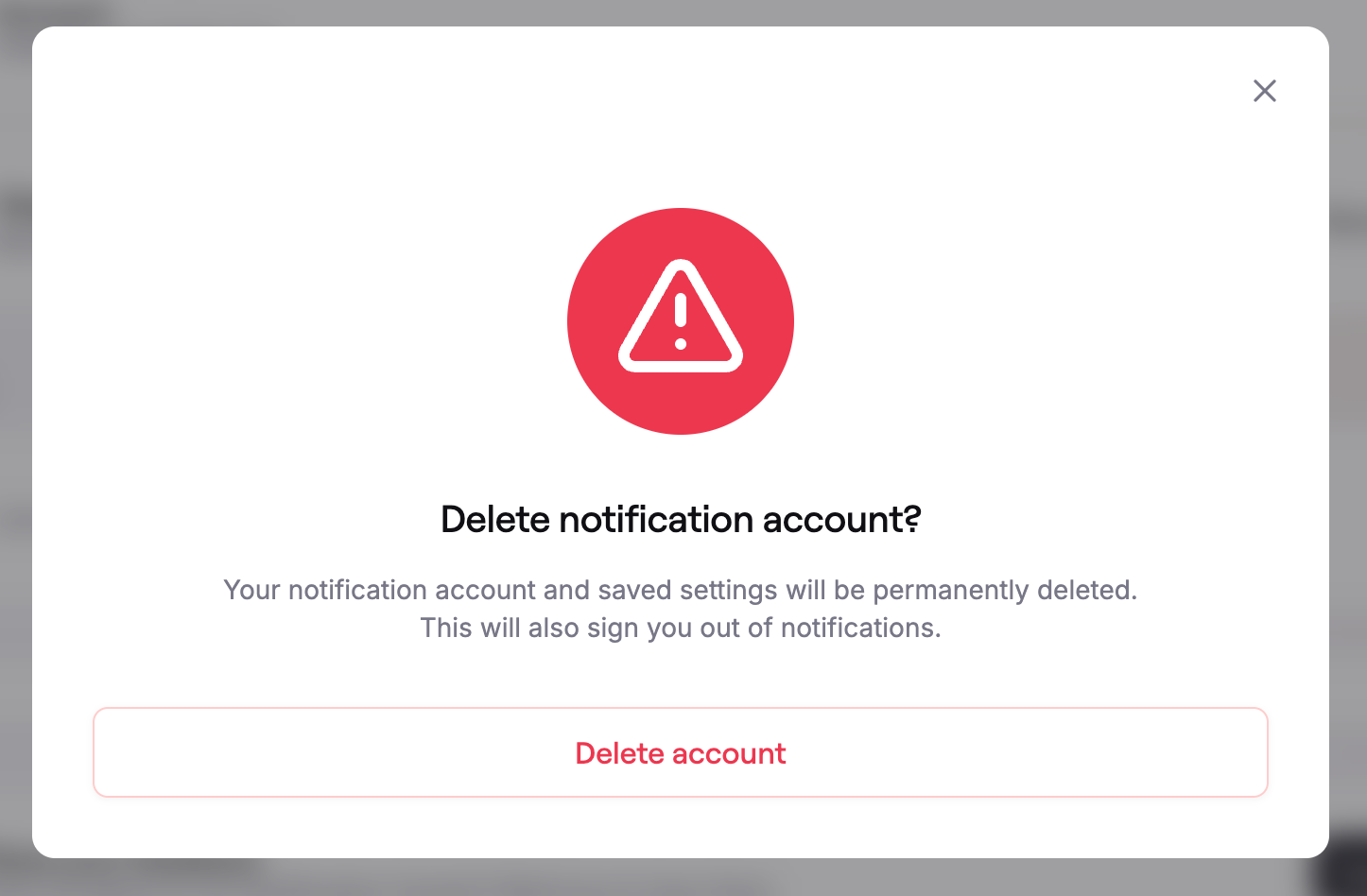 Delete the notification account and its saved settings
- At the bottom of Notification Center, you can also use the Share your feedback panel to send feedback about the product and your experience using it.
 Use the feedback panel to share product feedback
Add Wallets
-
In the Wallets section, click Link more wallets to add a wallet address you want to monitor.
-
Paste a wallet address or click Use connected to use the wallet currently connected to the app. Only wallets with active SparkLend positions are supported.
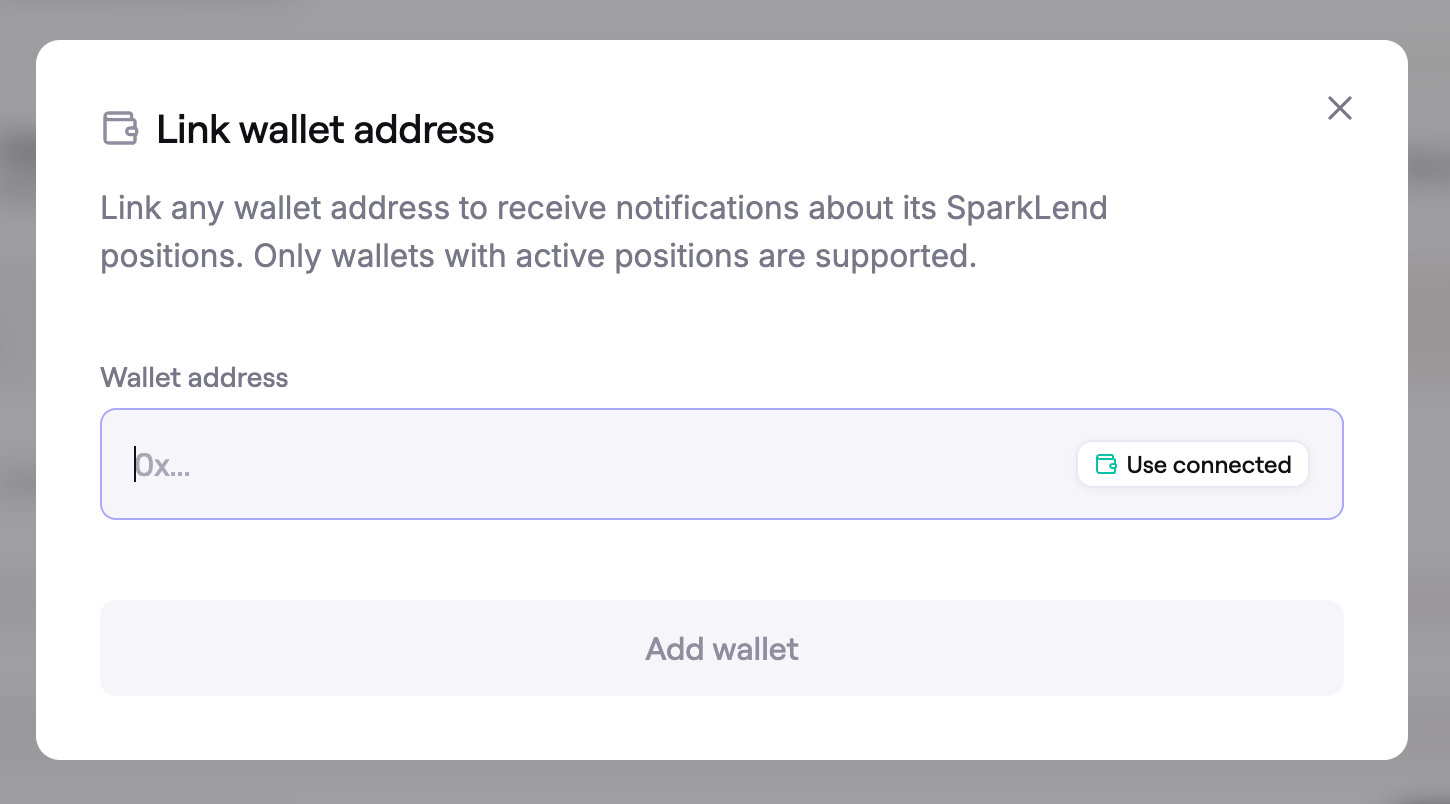 Link a wallet address for monitoring
- If the wallet does not have an active SparkLend position, Notification Center will show an error and the wallet will not be added. In that case, try another address.
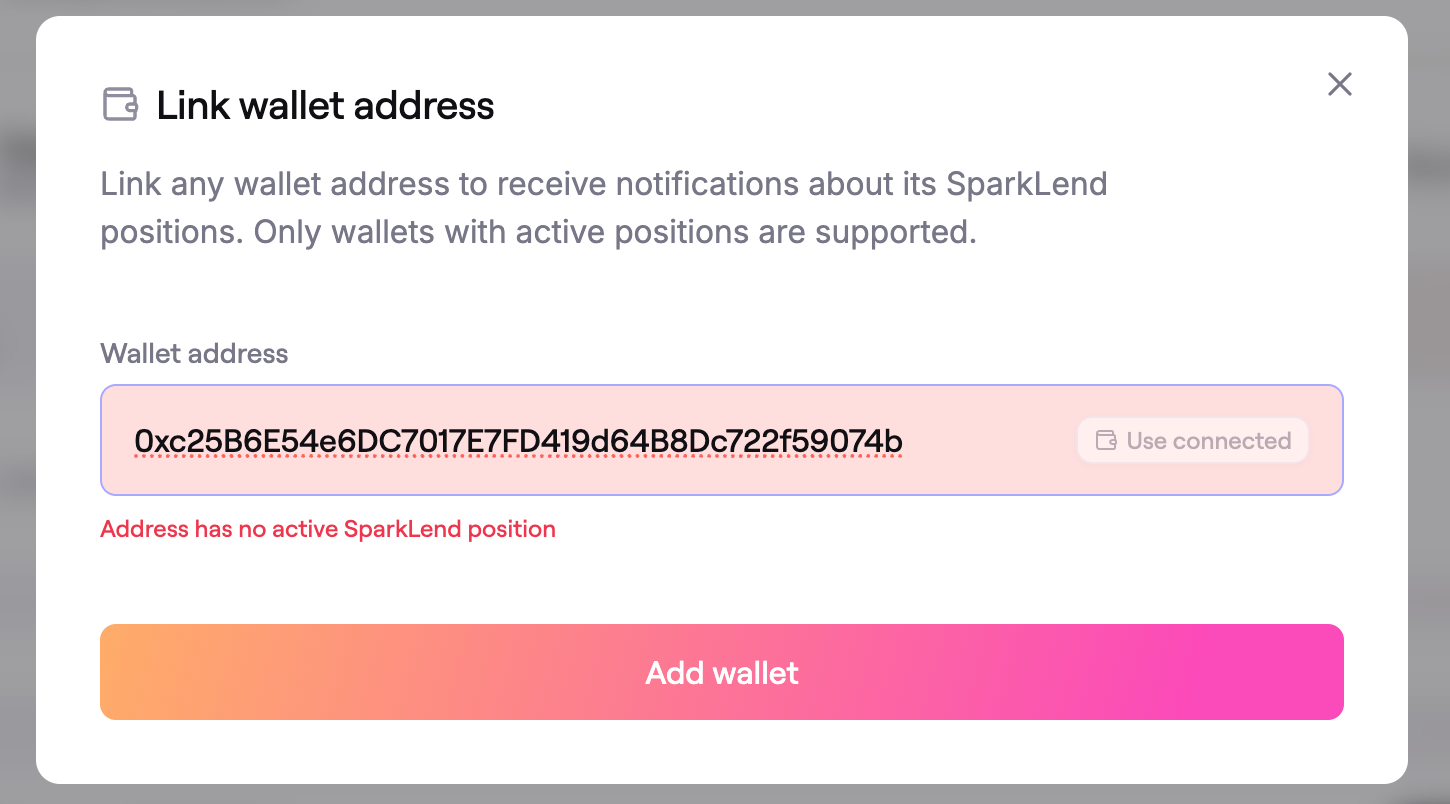 Only wallets with active SparkLend positions can be linked
- You can link more than one wallet. Each wallet has its own settings and can be managed separately.
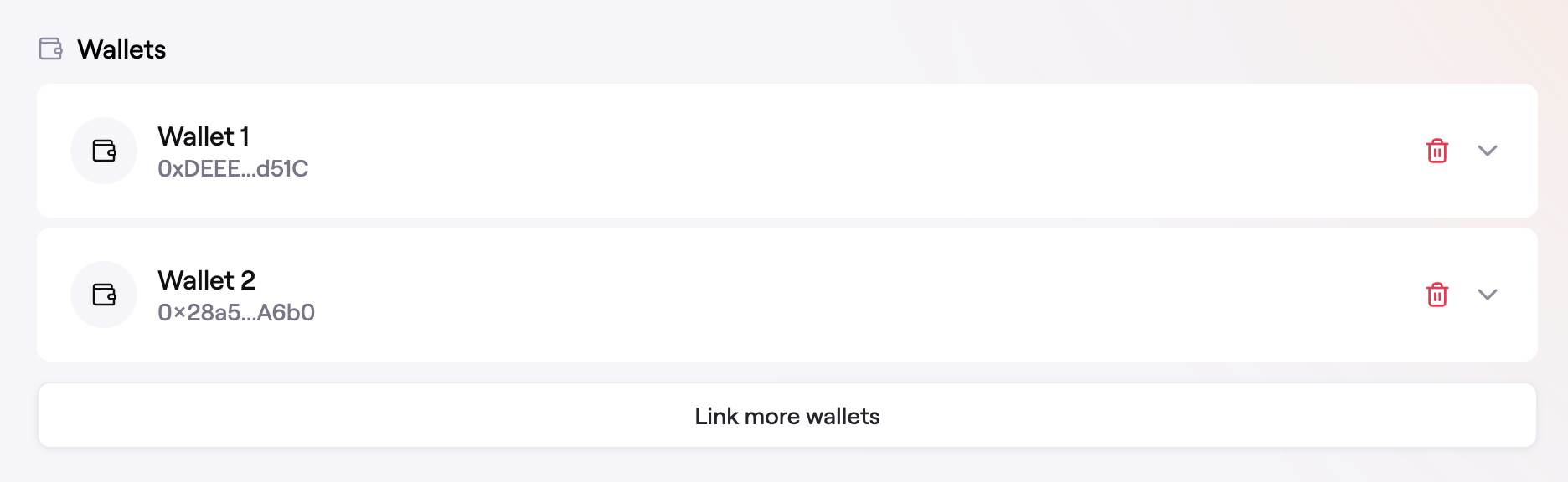 Notification Center supports multiple linked wallets
- To stop monitoring a wallet, click the trash icon next to that wallet and confirm the removal.
Manage Wallet Settings
-
Once a wallet is linked, expand it to manage its alert preferences:
- Health factor alert: Turn alerts on or off for that wallet.
- Health factor threshold: Choose the threshold that should trigger the alert.
- Email address: Enable or disable email delivery.
- Telegram: Enable or disable Telegram delivery if Telegram is connected.
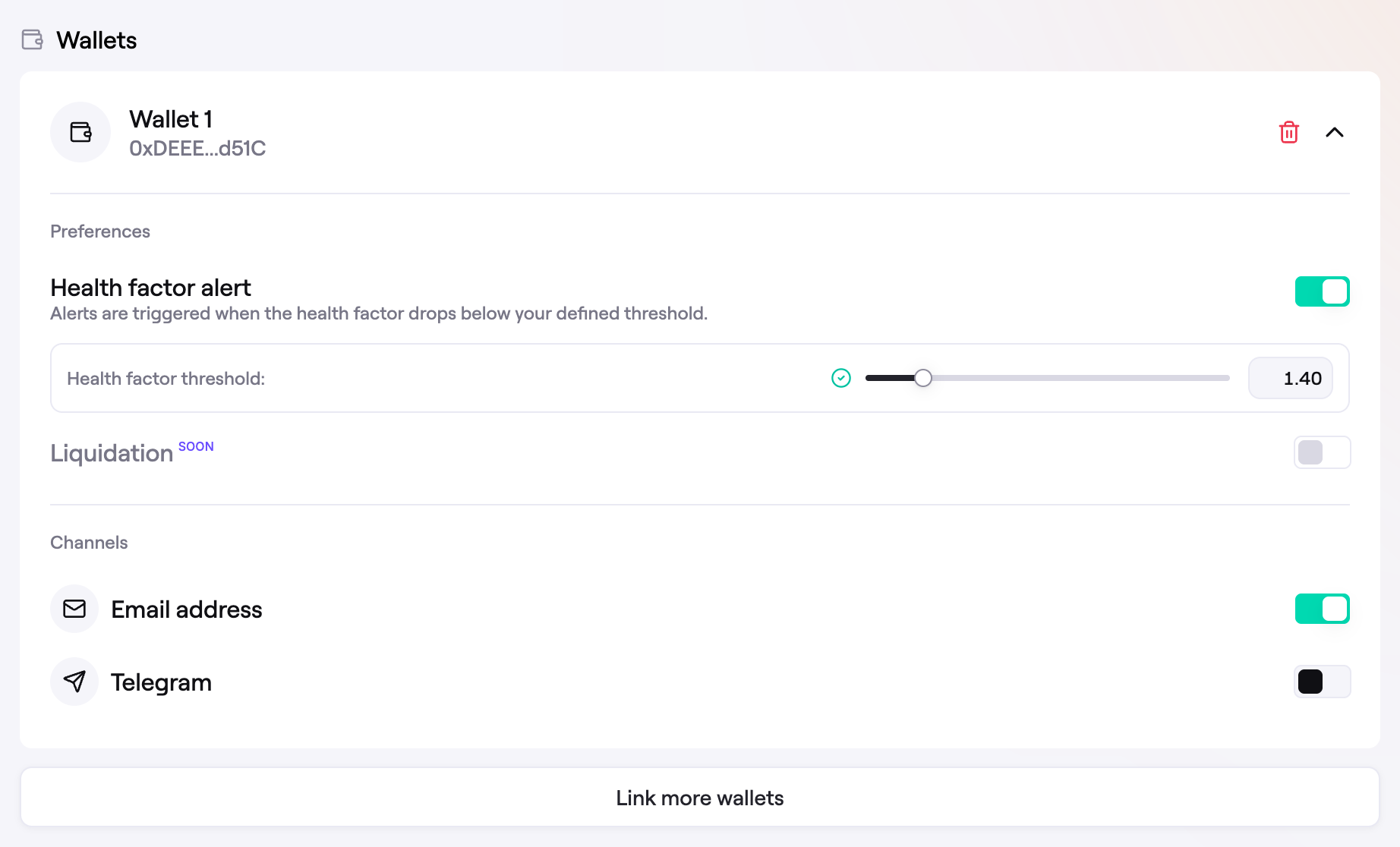 Manage per-wallet alert settings and notification channels
-
Turn on Health factor alert for the wallet you want to monitor, then set the threshold that should trigger the alert.
-
Enable the channels you want to use for that wallet. You can use email, Telegram, or both when Telegram is connected.
Email Examples
When you sign in, Spark sends a one-time verification code by email.
The sender will use the notifications.spark.fi domain.
Verification code email used during sign-in
When a linked wallet falls below your configured health factor threshold, Spark sends an alert email with a link to review the position.
The sender will also use the notifications.spark.fi domain.
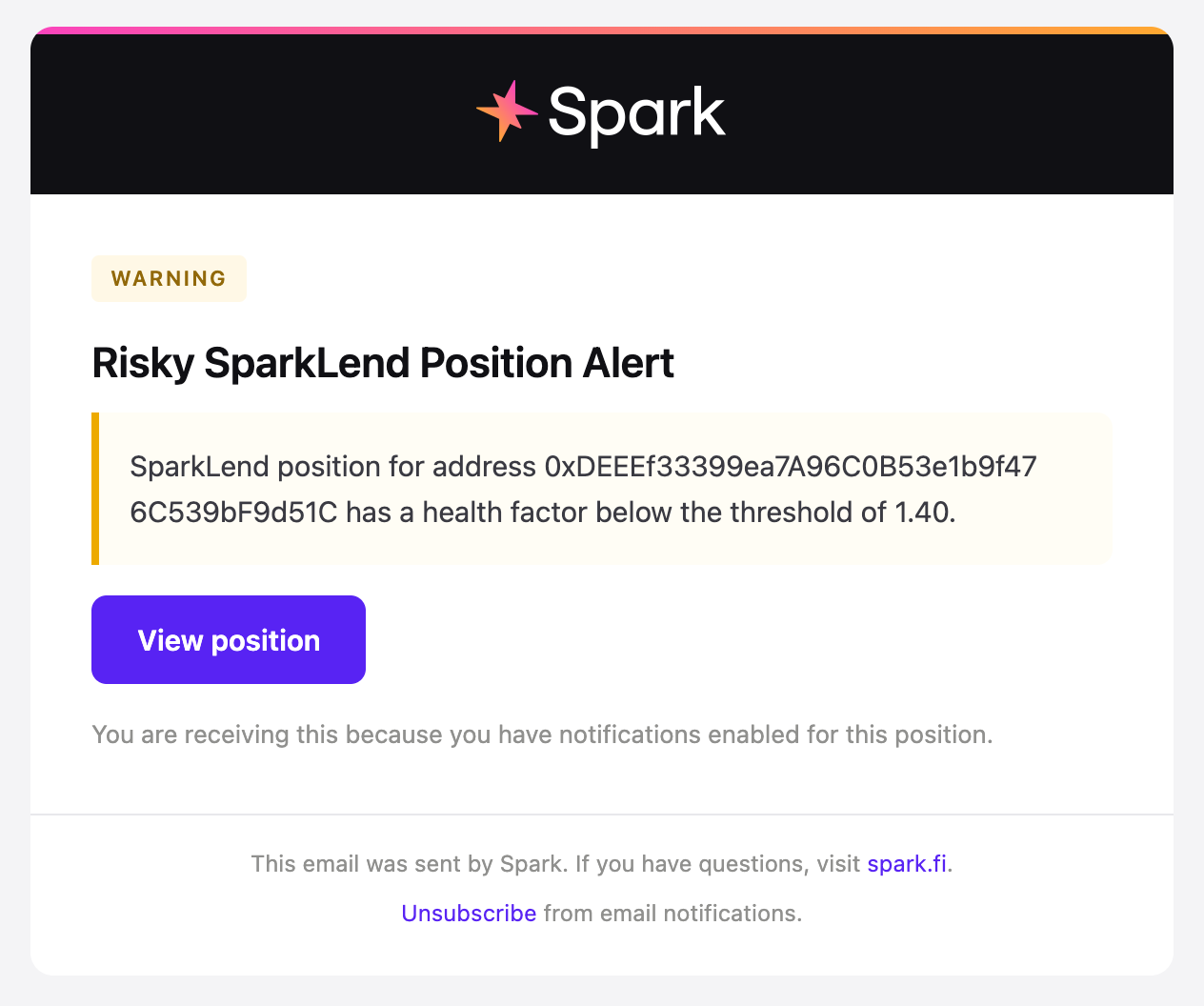 Example health factor alert email
You can also unsubscribe from email notifications from the link included in notification emails.
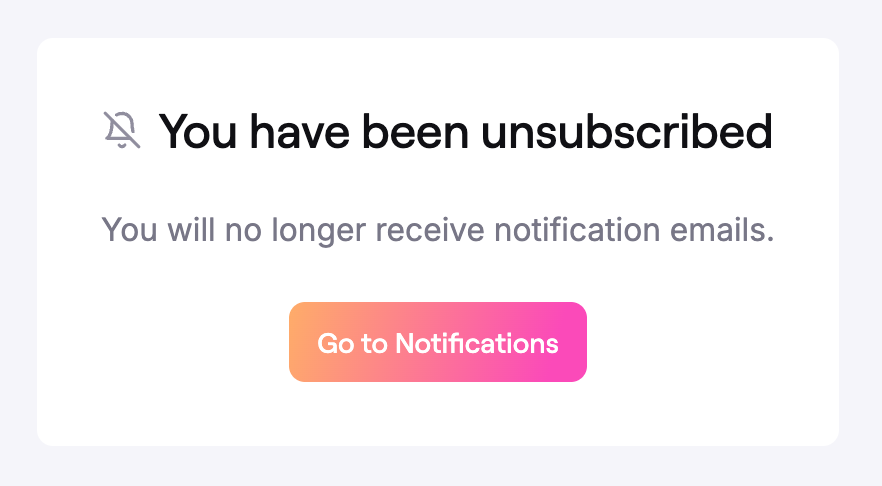 Confirmation screen after unsubscribing from email notifications
FAQ
Do I need Telegram to use Notification Center?
No. Email notifications work without Telegram. Telegram is optional and can be connected later.
Can I monitor more than one wallet?
Yes. You can link multiple wallets, and each wallet can have its own notification settings.
Which wallets can be linked?
Only wallets with active SparkLend positions are supported.
What triggers a health factor alert?
Alerts are triggered when the wallet's health factor drops below the threshold you configured for that wallet.
Can I stop email notifications without deleting my account?
Yes. You can disable the Email address channel for a linked wallet, or use the unsubscribe link in a notification email.
Important
Notification Center emails and related links will come from the notifications.spark.fi domain. If you receive a Notification Center email from a different domain, treat it with caution.